
Tracking outbound link clicks in Google Analytics 4 gives you a clearer picture of how visitors interact with external links on your website, whether those links point to partner sites, cited sources, or affiliate destinations. GA4 can capture this behaviour automatically through its enhanced measurement feature, or with greater precision through Google Tag Manager and custom event configurations. Understanding which method suits your setup, what the data actually tells you, and where its limitations lie will help you use outbound click data more effectively for SEO analysis and content decisions.
Key Takeaways
- GA4 can track outbound link clicks automatically via enhanced measurement, but the default setup captures all external clicks without filtering, which can produce noisy data.
- Google Tag Manager gives you more control over which outbound links are tracked, how events are named, and what additional parameters are captured alongside each click.
- Outbound click data is useful for understanding user behaviour and evaluating the practical value of external links on your pages, but it does not directly measure SEO impact or link equity.
- Custom dimensions and explorations in GA4 allow you to segment outbound click data by page, link destination, device type, and traffic source for more actionable reporting.
- Outbound link tracking is one input into a broader content and link strategy review; it should be interpreted alongside engagement metrics, conversion data, and backlink profile analysis.
What Outbound Link Tracking Means in GA4
An outbound link is any hyperlink on your website that directs a visitor to a domain different from your own. In GA4, when a user clicks one of these links, the browser navigates away from your site, which means the session on your domain typically ends. GA4 records this departure as a click event if tracking is configured correctly. The event captures information such as the destination URL, the page where the click occurred, and the link text or element class, depending on your configuration.
GA4 uses an event-based data model rather than the session-based model used in Universal Analytics. Every interaction, including outbound clicks, is recorded as a named event with associated parameters. This architecture makes it straightforward to build custom reports and audiences around outbound click behaviour, but it also means the data you see depends entirely on how your events are named and what parameters you choose to collect. Default configurations and custom configurations can produce very different datasets, so understanding your setup before drawing conclusions is important.
Outbound link tracking is distinct from tracking internal links, which connect pages within your own domain. It is also separate from tracking referral traffic, which is recorded on the destination site when a visitor arrives from your domain. Outbound click data lives in your own GA4 property and reflects your visitors’ behaviour, not the traffic you send to other sites.
GA4 Enhanced Measurement: The Automatic Option
GA4 includes a built-in feature called enhanced measurement, which can automatically track several interaction types without requiring additional code. Outbound clicks are one of the interactions covered. When enhanced measurement is enabled and the outbound clicks toggle is switched on, GA4 fires a click event each time a visitor clicks a link pointing to an external domain. The event includes a parameter called link_url that records the destination address and a parameter called link_domain that records the external domain name.
To check whether enhanced measurement is active in your GA4 property, navigate to Admin, then Data Streams, and select your web data stream. The enhanced measurement section shows which interaction types are currently enabled. Enabling outbound clicks here requires no changes to your website code beyond having the GA4 base tag installed, which makes it the fastest way to start collecting this data.
The limitation of the automatic approach is that it captures every outbound click without distinction. If your pages contain dozens of external links, including navigation elements, footer links, social media icons, and citation links, all of these will appear in your event data. This can make the reports harder to interpret unless you apply filters or build custom explorations that focus on the specific link destinations or page locations you care about. Enhanced measurement is a practical starting point, but many teams find they need more granular control as their reporting requirements grow.

Setting Up Outbound Link Tracking with Google Tag Manager
Google Tag Manager gives you precise control over which outbound links trigger events, what those events are called, and what additional data is sent to GA4 alongside each click. This approach requires more initial configuration but produces cleaner, more actionable data.
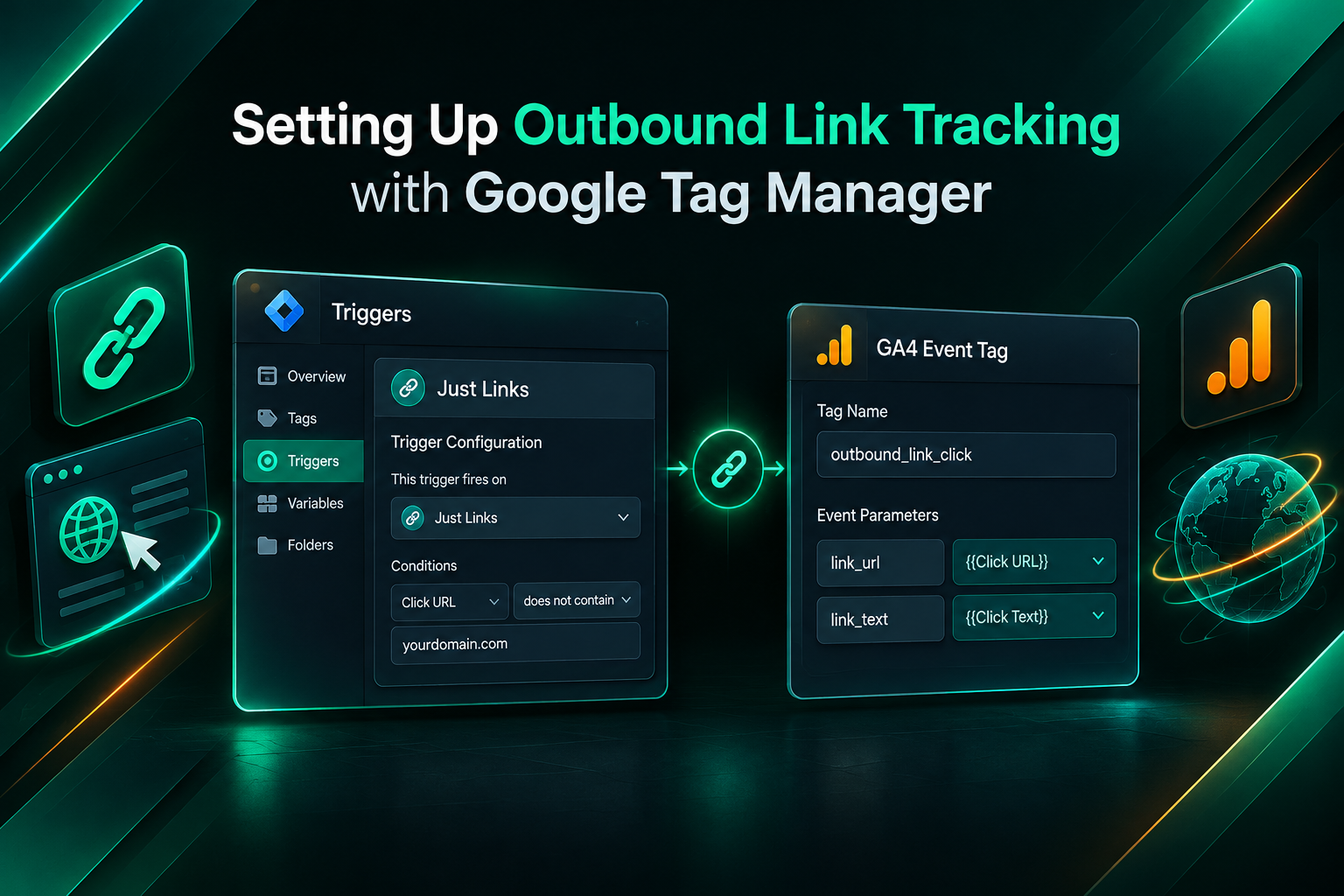
Step 1: Enable the Click Trigger Variables
In your Google Tag Manager container, go to Variables and enable the built-in click variables: Click Element, Click Classes, Click ID, Click Target, Click Text, and Click URL. These variables capture information about the element a visitor clicked and the URL it points to. Without enabling them, your triggers and tags cannot access the data needed to identify outbound links.
Step 2: Create a Trigger for Outbound Clicks
Create a new trigger and select the trigger type Just Links. Under the condition settings, configure the trigger to fire only when the Click URL does not contain your own domain. For example, if your domain is example.com, set the condition to fire when Click URL does not contain example.com. You may also want to enable the option to wait for tags to fire before the browser navigates away, which helps ensure the event is recorded even when visitors click quickly. This trigger will now activate whenever a visitor clicks a link pointing to an external domain.
Step 3: Create a GA4 Event Tag
Create a new tag using the Google Analytics: GA4 Event tag type. Connect it to your GA4 configuration tag or enter your Measurement ID directly. Name the event something descriptive and consistent with your existing event naming convention, such as outbound_link_click. Add event parameters to capture the destination URL and any other data you need. Common parameters include link_url mapped to the Click URL variable, link_text mapped to the Click Text variable, and page_location mapped to the Page URL variable. Assign the outbound click trigger you created in the previous step, then save and publish the container.
Step 4: Verify the Setup
Use GTM’s Preview mode to test the trigger before publishing. Open your website in the preview session, click an outbound link, and confirm that the tag fires and that the event parameters contain the expected values. You can also use the GA4 DebugView, found under Admin and then DebugView, to see events arriving in real time. Check that the link_url parameter contains the correct external destination and that the event name matches what you configured. Once verified, publish the GTM container to make the tracking live for all visitors.
Viewing Outbound Click Data in GA4 Reports
After your tracking is live and data has begun accumulating, you can find outbound click events in several places within GA4. The Events report under Reports and then Engagement lists all event names and their total counts. Clicking on the event name, whether it is the default click event from enhanced measurement or your custom outbound_link_click event from GTM, shows the event parameters and their values, including the most frequently clicked external URLs.
The standard Events report provides a useful overview but has limited filtering options. For more detailed analysis, GA4 Explorations offer a flexible workspace where you can build custom reports. A free-form exploration allows you to combine dimensions such as Event Name, Link URL, Page Location, and Device Category with metrics such as Event Count and Total Users. This makes it possible to answer specific questions, such as which pages generate the most outbound clicks to a particular domain, or whether mobile visitors click external links at a different rate than desktop visitors.
If you want outbound click data to appear in your standard reports alongside other key metrics, you can register the link_url parameter as a custom dimension. Go to Admin, then Custom Definitions, and create a new event-scoped custom dimension mapped to the link_url parameter. Once registered, this dimension becomes available in standard reports and explorations, making it easier to include outbound click destinations in your regular reporting workflow without rebuilding explorations each time.
Using Outbound Click Data for Content and Link Strategy
Outbound click data becomes most useful when it informs decisions about your content and the external links you include on your pages. High click volumes to a particular external destination suggest that visitors find that resource genuinely useful, which may support keeping the link or exploring whether a similar resource could be created on your own site. Very low click rates on links you expected to perform well may indicate that the link placement, anchor text, or surrounding content is not drawing attention effectively.
For teams managing link building campaigns, outbound click data can also help evaluate the practical engagement value of links placed on your pages as part of reciprocal arrangements or content partnerships. A link that receives consistent clicks from relevant visitors may indicate stronger topical alignment between your content and the destination than a link that is never clicked. This is a behavioural signal rather than a direct SEO metric, and it should not be conflated with how search engines assess link equity or relevance.
Outbound click tracking is also relevant when auditing your existing content for link hygiene. Pages with a high volume of outbound clicks to low-quality or irrelevant destinations may benefit from a content review. Conversely, pages where outbound links to authoritative sources receive consistent engagement may support the case for expanding that content area. These are content quality decisions informed by user behaviour data, not direct ranking signals.
Filtering and Refining Your Outbound Click Reports
Raw outbound click data often includes clicks that are not relevant to your analysis, such as clicks on social media share buttons, footer links to legal pages on external domains, or tracking pixels that fire as link clicks. Filtering this noise is important for producing reports that reflect meaningful user behaviour.
In GA4 Explorations, you can apply filters to include only specific link_url values or to exclude known irrelevant domains. For example, you might exclude clicks to social media platforms if those are tracked separately, or focus only on clicks to domains within a specific industry or topic area. If you used Google Tag Manager for your setup, you can also refine the trigger conditions to exclude specific domains or link classes from the outset, which produces cleaner data at the collection stage rather than requiring post-collection filtering.
Segmenting outbound click data by traffic source can reveal whether visitors arriving from organic search, paid campaigns, or referral sources behave differently when encountering external links. Organic search visitors who click outbound links on a particular page may indicate that the page is attracting an audience with a specific research intent that your content partially but not fully satisfies. This kind of insight can inform content expansion decisions or help identify gaps where additional internal resources might reduce outbound navigation.
Common Configuration Issues and How to Resolve Them
Several common problems can affect the accuracy of outbound link tracking in GA4. Understanding these issues helps you diagnose gaps in your data before drawing conclusions from incomplete reports.
Double-counting events occurs when both enhanced measurement and a GTM-based tag are configured to track outbound clicks simultaneously. If you implement a custom GTM tag for outbound clicks, disable the outbound clicks toggle in enhanced measurement to avoid recording the same click twice. You can verify whether double-counting is occurring by checking the event count in DebugView while clicking a single outbound link; if two events fire for one click, both tracking methods are active.
Missing clicks on links that open in a new tab can occur if your GTM trigger is not configured to handle target=”_blank” links correctly. Because these links open a new browser tab rather than navigating the current page, the tag may not have enough time to fire before the new tab loads. Enabling the option to wait for tags in your Just Links trigger settings can help, though behaviour may vary across browsers. Testing in GTM Preview mode across different link types will confirm whether this is affecting your data.
Subdomain tracking gaps arise when your organisation uses multiple subdomains, such as blog.example.com and shop.example.com, and links between them are being recorded as outbound clicks. If these subdomains should be treated as part of the same property, configure cross-domain measurement in your GA4 data stream settings to include all relevant subdomains. This prevents internal navigation between subdomains from appearing as outbound clicks in your reports.
Consent and cookie restrictions affect outbound click data in markets where visitors frequently decline analytics cookies. If a significant portion of your audience opts out of tracking, your outbound click data will underrepresent actual behaviour. GA4’s consent mode can help model some of this missing data, but the modelled figures should be interpreted with appropriate caution rather than treated as precise counts.
What Outbound Click Data Does Not Tell You
Outbound link click tracking in GA4 measures a specific user behaviour: the act of clicking a link that leads away from your site. It does not measure what happens after the visitor arrives at the destination, whether the destination site records a referral visit, or how search engines assess the links on your pages. These are separate data points that require different tools and data sources.
Outbound click volume is not a proxy for link equity or SEO value. A link that receives many clicks from your visitors may or may not carry meaningful authority signals to the destination site, and a link that receives few clicks may still be editorially valuable from a content quality perspective. Search engines evaluate links using their own crawling and indexing processes, which are independent of the click behaviour recorded in your analytics property.

Similarly, outbound click data does not reveal the quality of the backlinks pointing to your own site. For that analysis, tools such as Google Search Console, Ahrefs, or Semrush provide referring domain data, anchor text distributions, and link attribute information that GA4 does not capture. A complete picture of your link profile requires combining outbound click data from GA4 with backlink data from dedicated SEO tools and referral traffic data from your analytics reports.
Integrating Outbound Click Tracking into a Broader SEO Workflow
Outbound link click data is most valuable when it is reviewed alongside other SEO and content performance metrics rather than in isolation. A practical workflow might involve reviewing outbound click reports monthly to identify pages with unexpectedly high external navigation rates, then cross-referencing those pages with engagement metrics such as average engagement time and scroll depth to understand whether visitors are leaving because they found what they needed or because the page did not fully satisfy their intent.
For agencies managing link building campaigns on behalf of clients, outbound click data can complement the reporting on acquired backlinks by showing how the client’s own content links to external resources. If a client’s content strategy involves citing industry research, linking to partner organisations, or referencing tool providers, outbound click data helps demonstrate that these links are genuinely integrated into content that visitors engage with, rather than being placed purely for SEO purposes.
Teams running content audits can use outbound click data to prioritise which pages to review first. Pages with high outbound click rates and declining organic traffic may indicate that content is directing visitors away before they convert or engage further. Pages with low outbound click rates on links that were intended to add value may suggest that the link placement or surrounding content needs revision. These are practical content quality signals that support more informed editorial decisions.
Frequently Asked Questions
Does GA4 track outbound link clicks by default?
GA4 can track outbound link clicks automatically if the enhanced measurement feature is enabled in your web data stream settings and the outbound clicks toggle is switched on. This requires no additional code beyond the standard GA4 tag. However, the default setup captures all external link clicks without filtering, which may include clicks on social icons, footer links, and other elements that are not relevant to your analysis.
What is the difference between using enhanced measurement and Google Tag Manager for outbound click tracking?
Enhanced measurement is the simpler option and requires no additional configuration beyond enabling the toggle in GA4. Google Tag Manager gives you more control over which links trigger events, what the events are named, and what parameters are collected. GTM is generally preferred when you need to exclude specific domains, capture additional data such as link text or element class, or avoid double-counting with other tracking configurations.
How do I see which specific URLs are being clicked in GA4?
In the Events report, click on the outbound click event name to see the event parameters. The link_url parameter shows the destination URLs. For more detailed analysis, build a free-form exploration in GA4 Explorations using Link URL as a dimension and Event Count as a metric. If link_url does not appear as an available dimension, register it as a custom dimension under Admin and then Custom Definitions.
Can outbound click data affect my SEO rankings?
Outbound click data recorded in GA4 is not shared with Google’s search ranking systems and does not directly influence how your pages rank. Search engines assess links through their own crawling processes. Outbound click data is a user behaviour metric that can inform your content and link strategy decisions, but it should not be interpreted as a ranking signal.
What should I do if my outbound click event count seems too high or too low?
If the count seems too high, check whether both enhanced measurement and a GTM tag are firing simultaneously, which would cause double-counting. Also review whether social media buttons, tracking pixels, or other non-content links are being included. If the count seems too low, verify that the trigger conditions in GTM are correct, that consent restrictions are not blocking a significant portion of events, and that links opening in new tabs are being captured correctly using the wait-for-tags option.
Is outbound link tracking relevant for link building analysis?
Outbound click tracking shows how visitors on your site interact with external links in your content. It is a useful behavioural signal for content quality assessment and can complement link building analysis, but it does not replace dedicated backlink tools such as Google Search Console, Ahrefs, or Semrush for evaluating your inbound link profile. The two data sources answer different questions and are most useful when reviewed together.
Making Outbound Click Data Work for Your SEO and Content Decisions
Tracking outbound link clicks in GA4 is a practical step toward understanding how visitors engage with external resources on your site. Whether you use enhanced measurement for a quick setup or Google Tag Manager for more precise control, the resulting data can inform content audits, link placement decisions, and editorial reviews in ways that session-level metrics alone cannot. The key is to interpret outbound click data for what it is: a record of user behaviour on your own pages, not a direct measure of SEO value, link equity, or ranking performance.
For businesses and agencies that manage content-heavy sites or run active link building campaigns, integrating outbound click reporting into a regular analytics workflow adds a useful layer of insight. Combining this behavioural data with backlink profile analysis from dedicated SEO tools, referral traffic data, and on-page engagement metrics gives a more complete picture of how your content and link strategy are performing together. If you are unsure how to interpret outbound click patterns in the context of your broader SEO goals, a qualified SEO professional or analytics specialist can help you connect the data to actionable decisions specific to your site and audience.